Digital delivery
BIM-AI Studio: check BIM models and ask them questions
Check IFC models against your project's rules in seconds. Ask the model questions in plain language, and see every answer in 3D.
Checks in under a second
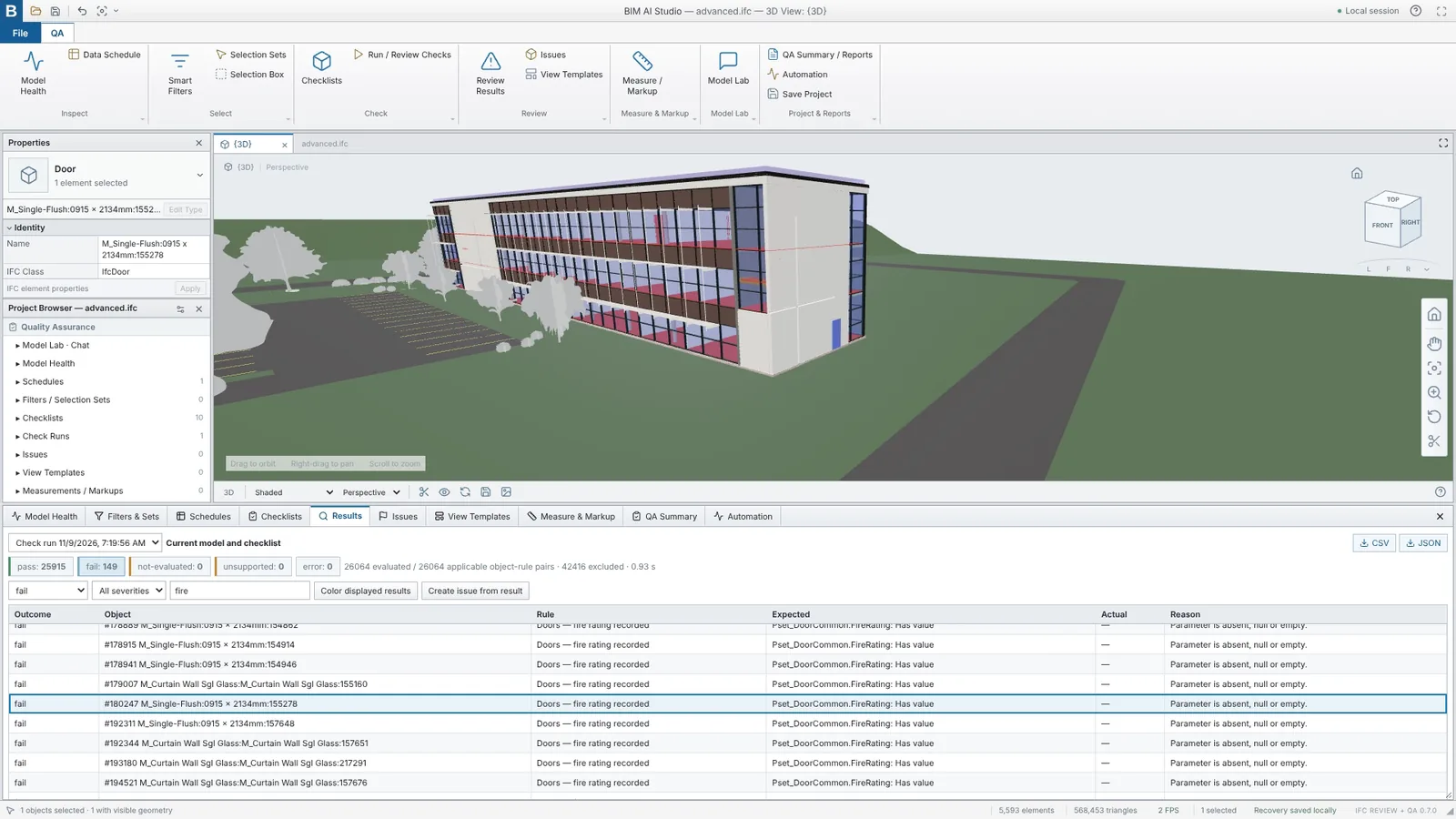
Run a project checklist across the whole model. Every issue is listed with its reason, one click from its place in 3D.
Ask the model
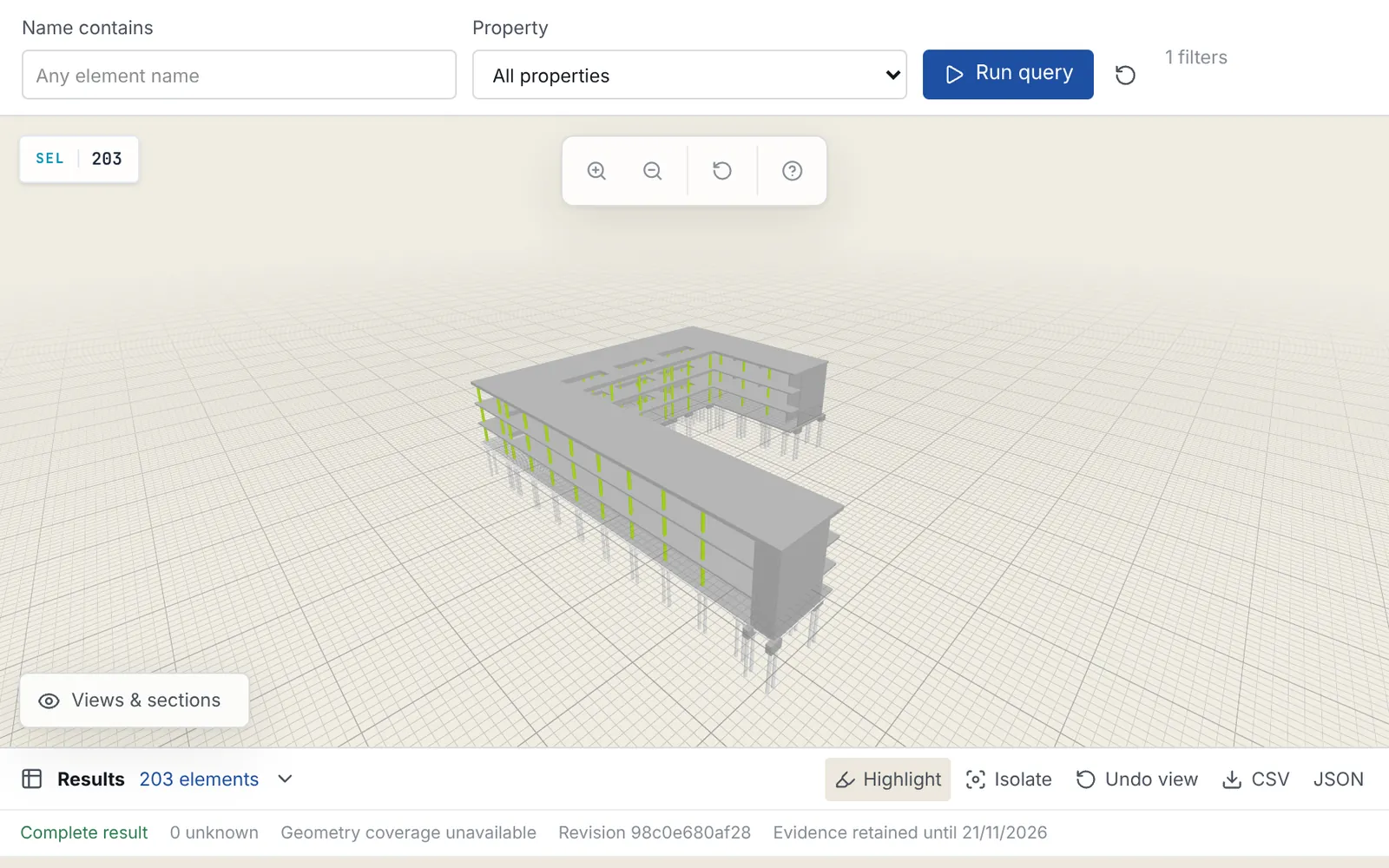
Ask how many, which and where. The AI assistant counts in the model itself and shows the elements in 3D.
Buildings and infrastructure
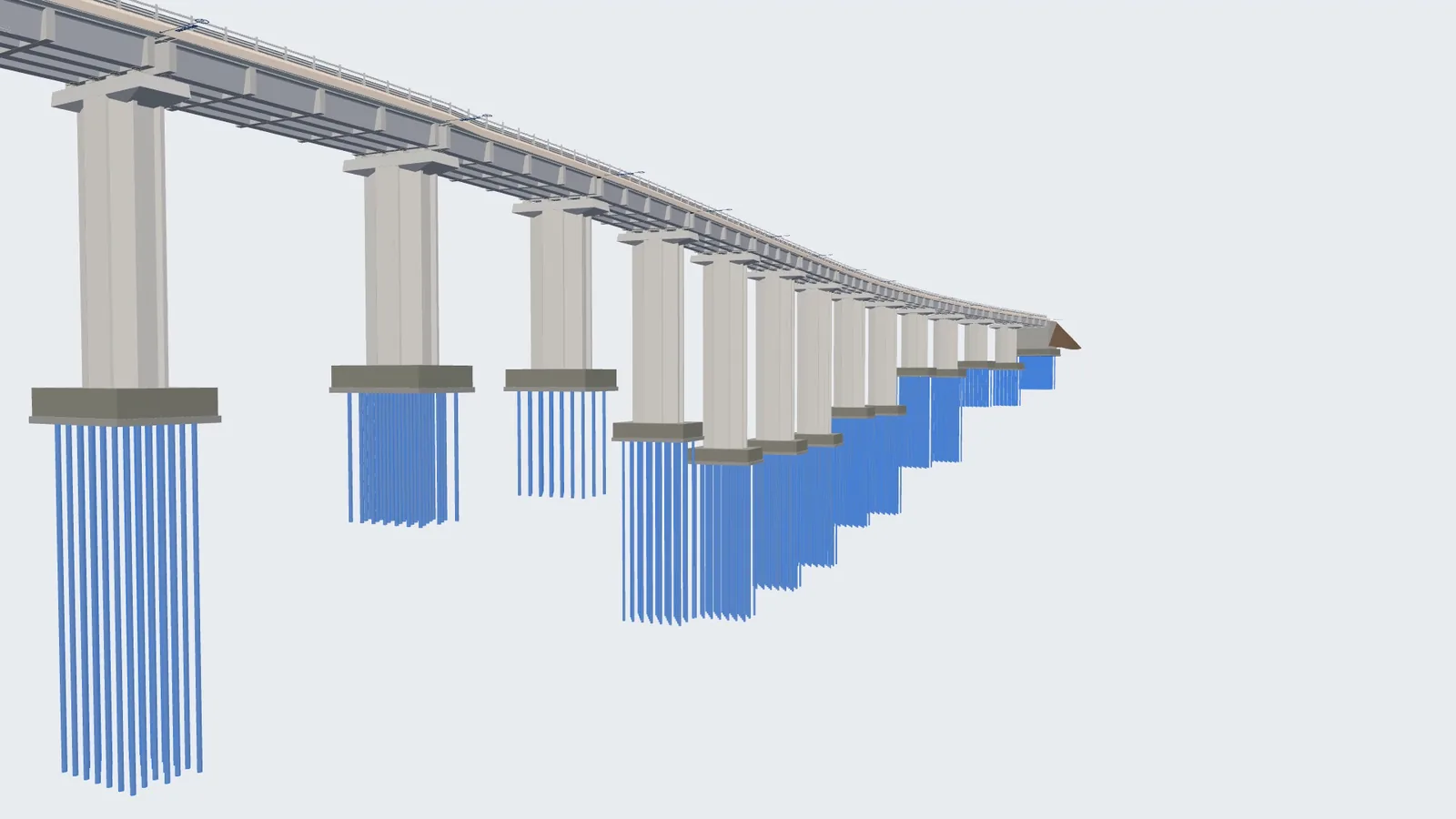
Works on building models and on bridge, road and rail models.
Why it matters
Clients expect BIM data they can trust, at handover and for years after. Checking it element by element is slow and misses things. BIM-AI Studio checks the whole model at once and shows exactly what to fix.
Check against your rules
Open an IFC model in the browser; it stays on your computer. Pick a checklist, or write your own rules, and tens of thousands of checks run in under a second.
Each result shows the required value, the actual value and the reason. Click a row and the view flies to that element. Turn any result into an issue linked to its 3D view, export a summary for each discipline, and run the checklist again when the model changes.
Ask the model
Ask in plain language, for example how many doors are on a level, grouped by type, or which foundations have no material. The assistant counts in the model itself, so the numbers come from your data. Highlight or isolate the elements in 3D and check each one.
What it does for each team
- Asset owners know the quality of the handover data, with a list of what is missing.
- Project managers see exactly what needs fixing, each issue tied to its place in the model.
- Consultants spend less time reviewing models before submission.
- Lecturers run hands-on classes on real models.
Saved review workflows
For teams that run the same review on many models, BIM-IFC Workbench saves each review as a workflow that runs the same way every time, with every finding traced to the query that produced it.